
Essential Maintenance Tips for a Reliable IP Camera System
An IP camera system is an important part of modern security infrastructure. Businesses, offices, warehouses, retail stores, residential buildings, and industrial facilities depend on network cameras to monitor activities, protect valuable assets, and maintain a safe environment. However, installing high-quality cameras is only the first step. Keeping them operational requires regular inspections, proper configuration, and preventive maintenance.
Over time, dust, moisture, unstable network connections, outdated firmware, damaged cables, and insufficient storage can affect surveillance performance. Even a small technical issue can result in blurry footage, missing recordings, delayed alerts, or complete camera failure. These problems may remain unnoticed until an incident occurs and recorded footage is required.
A structured IP Camera System Maintenance routine helps prevent these issues and keeps surveillance equipment operating consistently. It also improves image quality, protects recorded data, reduces unexpected repair costs, and extends equipment life.
This guide explains essential maintenance practices for IP cameras, network video recorders (NVRs), storage devices, network connections, and surveillance software. Whether you manage a small residential installation or a large commercial security network, these recommendations can help you maintain a dependable surveillance system.
1. Clean Camera Lenses and Housing Regularly
Physical cleaning is one of the simplest but most important surveillance maintenance tasks. Dust, fingerprints, insects, watermarks, and environmental pollution can accumulate on camera lenses and protective covers.
These contaminants reduce image clarity and may create unwanted reflections, particularly when infrared night vision is active. Outdoor cameras are more exposed to environmental conditions, making regular cleaning especially important.
Follow these cleaning practices:
- Inspect the camera lens for dust, fingerprints, and watermarks.
- Use a clean microfiber cloth to remove loose dirt.
- Apply a lens-approved cleaning solution when necessary.
- Avoid abrasive materials that can scratch protective glass.
- Check the camera housing for cracks or physical damage.
- Remove spider webs and insect debris around the camera.
- Make sure protective covers are properly secured.
Never spray cleaning chemicals directly onto the camera lens or electronic components. Excessive moisture can enter the housing and damage internal parts.
For dome cameras, inspect the transparent dome cover carefully. Scratches, fingerprints, and dust on this surface can affect image quality.
Cleaning frequency depends on the installation environment. Cameras installed near roads, construction sites, kitchens, or industrial facilities may require more frequent attention than cameras installed indoors.
Proper cleaning helps maintain clear images and ensures that important details remain visible during security incidents.
2. Inspect Camera Position and Field of View

A camera can remain online and continue recording while providing inadequate surveillance coverage. This often happens when its mounting position changes or obstacles enter the field of view.
For example, a tree may grow in front of an outdoor camera, a new shelf may block a retail camera, or construction work may change the layout of a monitored area.
During routine inspections, compare the current camera view with its original installation requirements.
Check the following:
- Confirm that the camera covers its intended monitoring area.
- Look for newly installed objects blocking the view.
- Check whether the camera angle has shifted.
- Inspect mounting brackets and screws.
- Verify that entry points, corridors, and important assets remain visible.
- Review the image during daytime and nighttime conditions.
PTZ cameras require additional attention because their viewing direction, zoom level, and preset positions may change during operation.
Test important PTZ presets and confirm that the camera returns to the correct positions. Also verify that scheduled patrol functions operate as expected.
For a commercial building, camera placement should reflect actual security requirements. Entrances, reception areas, loading bays, parking facilities, and restricted access points may require different viewing angles.
A consistent inspection routine helps maintain useful surveillance coverage as the monitored environment changes.
3. Keep Camera Firmware and Software Updated
Firmware controls the internal operation of an IP camera. It manages important functions such as image processing, network communication, recording compatibility, and security features.
Manufacturers regularly release firmware updates to address software defects, improve device stability, and fix known security vulnerabilities.
Running outdated firmware can expose surveillance equipment to avoidable cybersecurity risks. It may also cause compatibility problems between cameras, NVRs, and video management software.
To maintain your equipment:
- Identify the exact model and firmware version of each camera.
- Visit the manufacturer’s official support website.
- Check whether a compatible firmware update is available.
- Read the release notes before installation.
- Back up important configurations where supported.
- Schedule updates during an appropriate maintenance window.
- Verify camera operation after installation.
Never install firmware designed for a different camera model or hardware revision. An incorrect firmware file can make a device unusable.
It is also important to update NVR firmware, VMS applications, and supporting operating systems according to the manufacturer’s recommendations.
For larger installations, maintain a firmware inventory showing device models, current versions, update dates, and maintenance status.
You can review the AXIS system hardening and maintenance guide for additional information about software updates and device security.
A planned IP Camera System Maintenance schedule should include firmware reviews instead of relying on occasional manual checks.
4. Check Network Connections and Bandwidth
IP cameras depend on network connectivity to transmit video to an NVR, server, or video management platform. Network problems can cause dropped connections, delayed video, poor image quality, and interrupted recordings.
A camera may appear online but still experience unstable communication because of packet loss, insufficient bandwidth, damaged cables, or network congestion.
Inspect the network infrastructure regularly.
Check Ethernet Cables
Look for damaged insulation, loose connectors, exposed wiring, and signs of moisture. Replace cables that show physical deterioration.
For outdoor installations, use suitable weather-resistant cabling and properly protected connections.
Inspect Network Switches
Confirm that connected camera ports are working correctly. Review port activity, link speed, and error indicators where supported.
A faulty switch port can cause repeated camera disconnections.
Monitor Network Bandwidth
High-resolution cameras consume network bandwidth, particularly when several devices transmit high-frame-rate video simultaneously.
Review the following settings:
- Video resolution
- Frames per second (FPS)
- Video compression format
- Bitrate configuration
- Main stream and substream settings
- Number of simultaneous viewing connections
H.265 compression may reduce bandwidth and storage requirements compared with H.264, depending on the camera, scene, and configuration.
However, compression settings should be selected according to image-quality requirements and system compatibility.
Use Network Segmentation
For commercial installations, consider placing surveillance devices on a dedicated VLAN. This separates camera traffic from ordinary business network traffic and can simplify security management.
The ONVIF cybersecurity recommendations explain network segmentation, firewall protection, encrypted connections, and access restrictions for IP-based security devices.
5. Inspect Power Supply and PoE Connections
A stable power supply is essential for reliable camera operation. Power interruptions can cause cameras to disconnect, restart unexpectedly, or stop recording.
Many IP cameras use Power over Ethernet (PoE), which allows network cables to carry both data and electrical power.
Although PoE simplifies installation, the network switch must provide sufficient power for all connected cameras.
During maintenance, inspect:
- PoE switch status and power consumption.
- Power adapters and electrical connections.
- Network cable condition.
- Loose or damaged connectors.
- Camera restart history.
- Signs of overheating around power equipment.
Check the total PoE power budget rather than considering only the number of available ports. Cameras with infrared illuminators, heaters, or PTZ motors may require additional power.
If a switch reaches its power limit, some cameras may restart or become unavailable when additional features activate.
For critical surveillance installations, consider using an uninterruptible power supply (UPS). A suitable UPS can provide temporary backup power during electrical interruptions.
Test the UPS according to its manufacturer’s instructions. Confirm that the NVR, network switches, and other essential equipment receive adequate backup power.
You can also review Axis hardware and system guidelines for recommendations related to power continuity and storage performance.
6. Monitor NVR Storage and Recording Performance
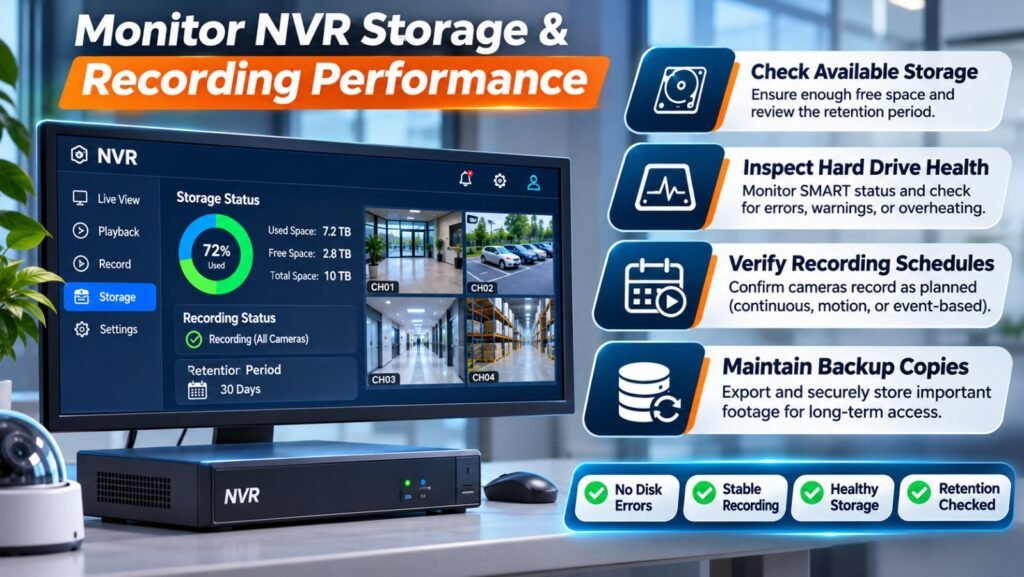
A surveillance camera is useful only when the system records and preserves the required footage.
Network Video Recorders store video from connected cameras and make recordings available for playback. However, storage devices can develop faults, become full, or experience performance problems.
Regular storage inspections help prevent unexpected recording gaps.
Check Available Storage
Review the NVR storage dashboard to confirm that sufficient disk space is available.
Check whether the recording retention period meets your organization’s requirements. Retention depends on camera resolution, bitrate, frame rate, recording schedules, and the number of connected devices.
Inspect Hard Drive Health
Monitor disk health indicators and system warnings. Where supported, use SMART monitoring to identify possible drive problems.
Pay attention to:
- Disk errors
- Abnormal operating temperatures
- Unexpected recording interruptions
- Repeated drive warnings
- Unusual mechanical noise
- Reduced storage performance
Replace failing drives with models compatible with the NVR.
Verify Recording Schedules
Confirm that cameras follow their intended recording schedules.
Some cameras may use continuous recording, while others record only when motion or specific events occur.
Test playback from different dates and times to ensure that footage is available.
Maintain Backup Copies
Important video evidence should be exported and stored securely according to organizational retention policies.
Avoid relying on a single recorder as the only storage location for critical footage.
For additional guidance, read Axis’ video data as evidence white paper. It explains why video integrity, secure storage, and proper footage handling matter when recordings may be required as evidence.
7. Protect Your IP Cameras from Cybersecurity Threats
IP cameras are network-connected devices. Like other connected equipment, they can become targets for unauthorized access if security settings are weak or outdated.
Poor password management, unnecessary open ports, exposed remote access, and outdated firmware can increase security risks.
Apply the following cybersecurity practices.
Change Default Passwords
Never continue using factory-default credentials.
Create strong, unique passwords for cameras, NVRs, administrator accounts, and management platforms.
Avoid using the same password across multiple devices.
Create Individual User Accounts
Where supported, assign separate accounts to administrators, operators, and viewers.
Give each user only the permissions required for their responsibilities.
This improves accountability and reduces the impact of compromised accounts.
Disable Unnecessary Services
Turn off unused protocols, services, and remote access features.
Do not expose camera management interfaces directly to the public internet unless there is a clear business requirement and suitable security protection.
Use Secure Remote Access
Use encrypted connections such as HTTPS where supported.
For remote monitoring, consider a properly configured VPN or a manufacturer’s secure remote-access solution.
Avoid unnecessary port forwarding and insecure direct connections.
Review Login Activity
Check system logs for repeated failed login attempts, unfamiliar access, and unexpected configuration changes.
Investigate suspicious activity rather than ignoring repeated warnings.
The ONVIF cybersecurity white paper provides practical recommendations for passwords, permissions, network protection, and device maintenance.
8. Test Motion Detection and Smart Security Features
Modern IP cameras may include intelligent security functions that help operators identify important events.
Depending on the camera model and NVR, these features may include:
- Motion detection
- Human detection
- Vehicle detection
- Line-crossing detection
- Intrusion detection
- Camera tampering alerts
- Smart event search
However, these features require appropriate configuration and regular testing.
A motion detection zone may become ineffective if furniture is moved, lighting conditions change, or a camera angle is adjusted.
During maintenance, test each important detection function.
Walk through the monitored area and confirm that the camera detects the expected activity. Check whether the NVR records the event and whether configured notifications reach the correct users.
Review detection sensitivity and exclusion zones to reduce unnecessary alerts.
For example, a camera facing a busy road may generate excessive motion notifications from passing vehicles. Adjusting detection zones can help focus monitoring on the actual protected area.
Also check whether event recording starts and stops correctly.
Smart detection should support security operations rather than create excessive notifications that operators eventually ignore.
9. Inspect Outdoor Cameras and Weather Protection
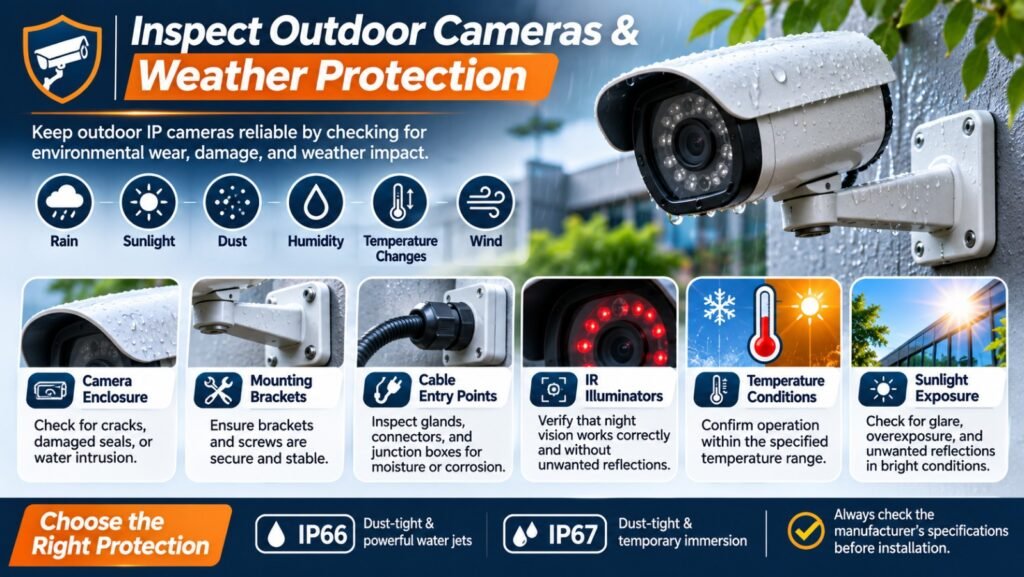
Outdoor IP cameras face more environmental challenges than indoor equipment.
Rain, sunlight, dust, humidity, temperature changes, insects, and corrosion can affect camera housings and electrical connections.
Even cameras with weather-resistant ratings require regular inspections.
Check the following:
Camera enclosure: Look for cracks, damaged seals, loose covers, or signs of water intrusion.
Mounting brackets: Confirm that brackets and screws remain secure. Strong wind and vibration can gradually affect mounting stability.
Cable entry points: Inspect glands, connectors, and junction boxes for moisture or corrosion.
Infrared illuminators: Confirm that night vision works correctly and that nearby surfaces do not create excessive reflections.
Temperature conditions: Check whether cameras operate within the manufacturer’s specified temperature range.
Sunlight exposure: Review images during bright daylight to identify glare, overexposure, and unwanted reflections.
For new installations, select cameras with environmental protection ratings suitable for their installation locations.
An IP66 or IP67 rating, for example, indicates defined levels of protection against dust and water under specified test conditions. It does not mean that every camera is suitable for every outdoor environment.
Always check the manufacturer’s technical specifications before installation.
10. Verify Image Quality During Day and Night
A camera can remain connected and record continuously without producing useful images.
Image quality should therefore be evaluated as part of every scheduled inspection.
Start by checking daytime footage. Look for incorrect exposure, excessive brightness, poor contrast, and out-of-focus objects.
Then review nighttime footage.
Infrared illumination may produce problems when objects are too close to the lens. Reflections from glass, walls, or dirty dome covers can also reduce night visibility.
Review these image settings:
- Resolution
- Frame rate
- Exposure
- White balance
- Backlight compensation
- Wide Dynamic Range (WDR)
- Noise reduction
- Infrared intensity
- Focus and zoom
Do not change settings simply to make the image appear brighter or sharper. Adjust them according to the actual surveillance environment.
For example, a camera monitoring a doorway with bright sunlight behind visitors may benefit from appropriate WDR settings.
A warehouse camera may require different exposure and infrared settings because of large spaces and uneven lighting.
Maintain reference screenshots of important camera views. Comparing current images with previous reference images can help identify gradual changes in focus, position, or image quality.
11. Review Camera Logs and System Notifications
System logs provide useful information about camera operation, network connectivity, user activity, and technical errors.
Ignoring these records can allow minor issues to develop into serious system failures.
Review logs from cameras, NVRs, switches, and video management software where available.
Look for:
- Repeated camera disconnections
- Unexpected device restarts
- Failed login attempts
- Recording errors
- Storage warnings
- Firmware update failures
- Network communication problems
- Configuration changes
Enable suitable system notifications so administrators can respond when a camera becomes unavailable or recording stops.
For larger surveillance networks, centralized monitoring can make it easier to identify problems across multiple locations.
Document important maintenance activities, including the issue identified, corrective action, technician, and completion date.
This record helps identify recurring problems and provides a useful maintenance history.
12. Establish a Preventive Maintenance Schedule
An effective maintenance program should assign clear responsibilities and define when each task must be completed.
Without a schedule, maintenance often happens only after equipment fails.
A practical starting point is to divide tasks into weekly, monthly, quarterly, and annual inspections. Adjust the intervals according to installation size, operating conditions, and manufacturer recommendations.
Weekly Maintenance
- Check live video feeds from all cameras.
- Confirm that important cameras are online.
- Review recording status.
- Check for blocked or changed camera views.
- Investigate system notifications.
Monthly Maintenance
- Clean accessible camera lenses and housings.
- Inspect visible cables and connectors.
- Test motion detection and event notifications.
- Review recording playback.
- Check storage capacity and system health.
- Verify night vision performance.
Quarterly Maintenance
- Review firmware and software versions.
- Inspect camera mounting and outdoor enclosures.
- Test UPS performance according to manufacturer instructions.
- Review user accounts and permissions.
- Examine system logs and recurring errors.
- Confirm backup and footage export procedures.
Annual Maintenance
- Conduct a complete surveillance system audit.
- Review camera coverage against current security requirements.
- Assess NVR and storage device condition.
- Evaluate network capacity and power requirements.
- Review equipment warranties and replacement requirements.
- Update system documentation and maintenance records.
A written checklist makes these activities easier to manage and ensures that important tasks are not overlooked.
13. Know When to Contact a Professional CCTV Technician
Some maintenance activities can be performed by trained system operators. Others require specialist knowledge, suitable tools, and an understanding of network surveillance infrastructure.
Professional assistance may be necessary when:
- Multiple cameras repeatedly disconnect.
- An NVR fails to recognize installed hard drives.
- Firmware updates cause compatibility problems.
- Video quality remains poor after basic cleaning and configuration.
- Network performance affects several cameras.
- Water enters camera housings.
- Power supply problems continue after inspection.
- Remote access or cybersecurity settings require advanced configuration.
A qualified CCTV technician can inspect the complete installation, identify underlying faults, test network performance, and recommend suitable corrective actions.
Professional servicing is particularly useful for commercial buildings, warehouses, educational institutions, hotels, and industrial facilities where surveillance downtime can affect security operations.
When selecting a maintenance provider, check technical experience, familiarity with the installed camera brands, service coverage, and availability of replacement components.
Regular professional inspections can complement routine in-house checks and reduce the risk of unexpected equipment failures.
Reliable video surveillance depends on more than installing cameras and connecting them to an NVR. Every component must operate correctly to deliver clear images, uninterrupted recording, secure access, and dependable monitoring.
Regular cleaning, camera positioning checks, firmware updates, network inspections, power testing, storage monitoring, and cybersecurity controls all contribute to long-term system performance.
A structured IP Camera System Maintenance program also helps organizations identify potential faults before they affect security operations. By combining routine inspections with professional technical support, businesses can reduce downtime, protect recorded footage, and maintain effective surveillance coverage.
The best approach is to establish a documented maintenance schedule, assign responsibilities, and test every critical camera and recording function regularly. Consistent preventive maintenance helps ensure that your surveillance system is ready when you need it most.
Frequently Asked Questions (FAQs)
1. How often should an IP camera system be maintained?
An IP camera system should receive basic operational checks every week and more detailed inspections monthly. Firmware, cybersecurity, power, storage, and hardware condition should also be reviewed periodically. The exact schedule depends on the installation environment and manufacturer’s recommendations.
2. How do I maintain clear IP camera footage?
Clean the camera lens with a suitable microfiber cloth, inspect the protective cover, and verify focus and exposure settings. Check for obstructions, reflections, incorrect lighting, and damaged lenses. Review both daytime and nighttime footage to confirm that images remain usable.
3. Why do IP cameras keep disconnecting?
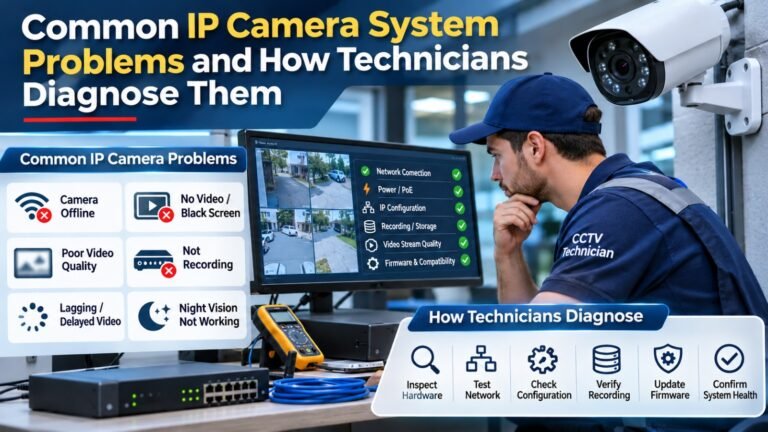
Common causes include unstable power, damaged Ethernet cables, faulty network switches, insufficient PoE capacity, IP address conflicts, and network congestion. Check device logs and network connections to identify the cause before replacing equipment.
4. Should IP camera firmware be updated regularly?
Yes. Firmware should be reviewed regularly, and compatible security and stability updates should be installed according to the manufacturer’s recommendations. Always verify the camera model, read release notes, and back up configurations before updating.
5. How can I protect my IP camera system from hackers?
Change default passwords, use unique accounts, restrict administrator permissions, update firmware, disable unnecessary services, and protect camera networks with appropriate firewalls and segmentation. Secure remote access with encrypted connections or a properly configured VPN.
6. How do I know if my CCTV system is recording properly?
Check the NVR recording status, review playback from different cameras and time periods, inspect storage warnings, and confirm that recording schedules are correct. Test important event recordings and export procedures as well.
7. Does regular maintenance extend the life of IP cameras?
Yes. Cleaning, environmental inspections, stable power, appropriate firmware updates, and early fault detection can help reduce equipment stress and prevent avoidable failures. Actual equipment lifespan still depends on product quality, operating conditions, and manufacturer specifications.